
Fix Missing Channel Logos in TiviMate

Quick answer
If your TiviMate IPTV player is showing channel names but missing the associated channel logos, there are several targeted steps you can take to resolve this. Missing logos usually mean there is a problem either with your playlist metadata, the EPG (Electronic Program Guide) s...
Reviewed Against
• TiviMate playlist, EPG, and player-setting workflows
• XMLTV guide imports, refresh timing, and channel-guide matching
Applies To
• TiviMate setups on Android TV, Google TV, or Fire OS style streaming devices
• Guide data issues such as missing listings, stale guide refreshes, or wrong time offsets
Does not apply when
• Your app uses a different menu layout or naming scheme than TiviMate.
• The stream itself will not play at all and you still need to verify login or playlist access.
Corroborating Resources
XMLTV file format referenceUseful when the issue comes from guide-source formatting, channel mapping, or XMLTV data freshness.
Topic Cluster
Part of the EPG cluster
Guide data problems, XMLTV and playlist matching, time-offset fixes, and TiviMate EPG recovery paths. This page sits in troubleshoot and fix for that topic path.
Start here in this topic
On this page
Fix Missing Channel Logos in TiviMate
If your TiviMate IPTV player is showing channel names but missing the associated channel logos, there are several targeted steps you can take to resolve this. Missing logos usually mean there is a problem either with your playlist metadata, the EPG (Electronic Program Guide) source, or the TiviMate app’s cache and settings. Fixing this often involves refreshing your playlist, checking your EPG settings, verifying logo URL links, and making sure your app is updated.
This article provides a clear, step-by-step approach to fixing missing channel logos in TiviMate on Android TV devices, Fire TV devices, or compatible set-top boxes.
What you'll learn
- How to refresh and update your IPTV playlist in TiviMate to restore logos
- How to verify and fix your EPG source to ensure logos are linked properly
- The role of logo URLs and how to check their accessibility
- Why clearing the TiviMate cache can resolve display issues
- When to update TiviMate and device firmware for compatibility
- Recognizing when device-specific troubleshooting may be needed
Why Channel Logos Go Missing in TiviMate
Channel logos are part of the metadata your IPTV playlist or EPG provides and are displayed by TiviMate by reading logo URLs or embedded graphics. Logos can disappear if:
- The playlist is outdated or has incorrect metadata
- The EPG URL is invalid or not refreshed
- The logo URLs embedded in the playlist or EPG are broken or unreachable
- The TiviMate app cache contains corrupted data
- The app or device firmware is outdated and incompatible with the metadata format
Since TiviMate relies on up-to-date playlist and guide files, refreshing those sources is usually the fastest fix.
Step-by-Step Fix for Missing Logos in TiviMate
Follow these steps in order to systematically eliminate common causes for missing logos:
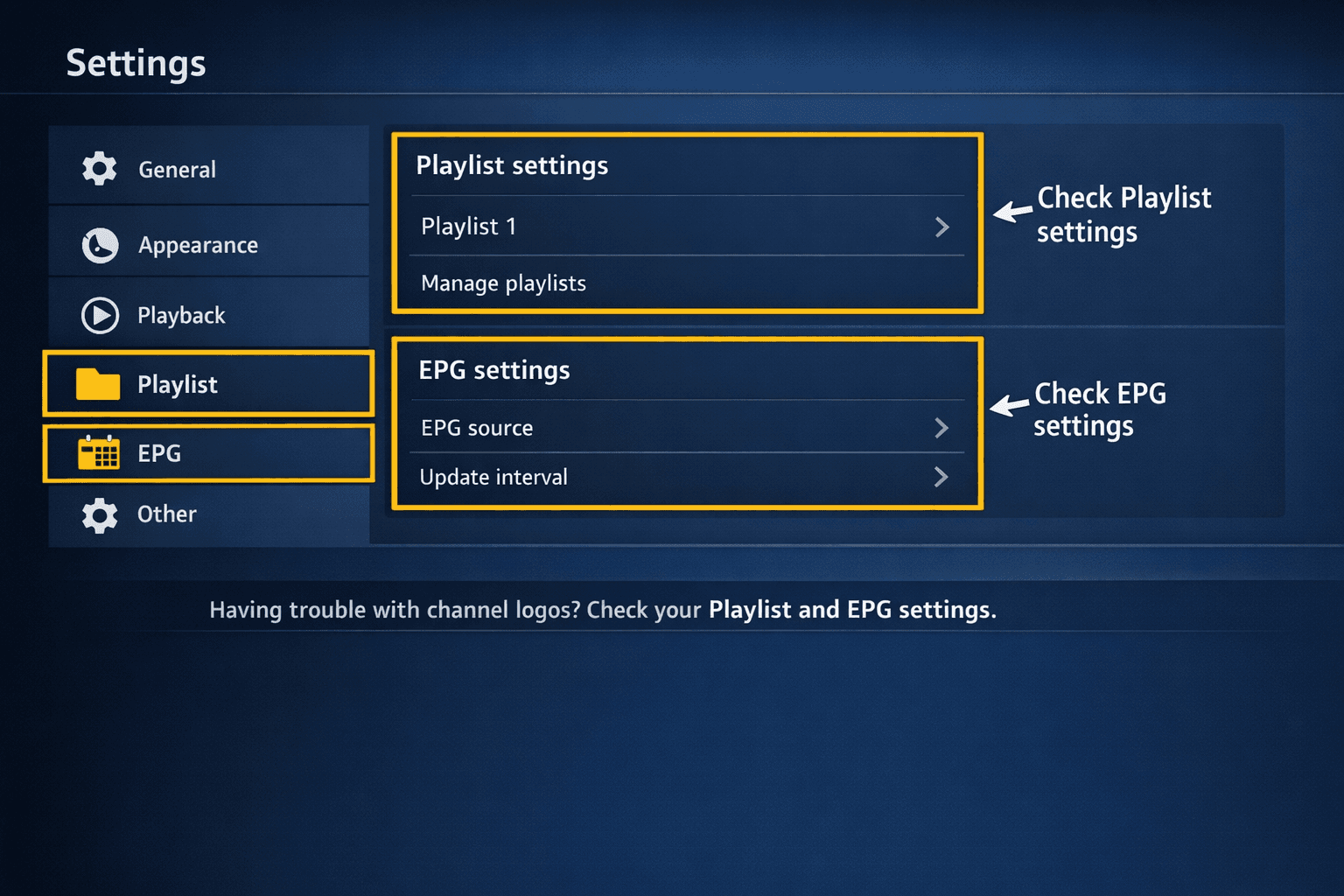
- Open TiviMate and access playlist settings: From the main menu, go to "Settings" > "Playlists".
- Refresh or reload your IPTV playlist: Select your current playlist and choose the "Refresh" option to update channel data.
- Verify and refresh your EPG source: Go to "Settings" > "EPG" and check that the URL is correct and current. Refresh or re-add if needed.
- Check logo file paths or URLs: Some playlists require external logo URLs or offline logo folders. Confirm these links work by testing them in a browser or file explorer.
- Update the TiviMate app: Ensure you’re running the latest version via your device’s app store to maintain compatibility.
- Clear TiviMate cache: In your device’s app settings, clear TiviMate’s cache to remove broken or outdated metadata.
- Restart the app: Close and reopen TiviMate and check if logos now appear as expected.
If logos remain missing after these steps, your playlist may lack proper logo data or your IPTV provider might have server issues hosting the logo files.
Troubleshooting Common Mistakes
Missing or Incorrect Logo Field in Playlist
Some M3U playlists lack proper "tvg-logo" fields, an attribute specifying the logo URL. Without this, TiviMate cannot display logos.
- Check your playlist by opening it in a text editor and search for "tvg-logo".
- If missing, ask your provider for an updated playlist that includes logo URLs.
Incorrect EPG or Logo URL
A broken EPG URL or logo server downtime can cause logos not to load.
- Test URLs in a browser device to confirm they're reachable.
- Switch to a known working EPG source temporarily to verify if logos reappear.
Cached Data Interference
Old or corrupted cache can prevent logos from updating.
- Clearing cache via the device's app settings often solves this.
Using Outdated App or Device Firmware
Always keep TiviMate and your streaming device updated to support the latest IPTV standards and metadata parsing.
Who This Guide Applies To
- Applicable: Users running TiviMate on Android TV boxes, Fire TV Stick, Fire TV Cube, or compatible Android devices using M3U playlists or Xtream Codes API.
- Not Applicable: If you use other IPTV apps or brands, device-specific apps, or proprietary IPTV platforms, this guide may be less relevant.
If your problem is specific to device connectivity, storage, or Fire TV system issues, consult device-specific troubleshooting resources before troubleshooting playlist/EPG metadata.
Checking Logo Compatibility in Your Playlist
Not all playlists include logo data in compatible formats. Here is what to confirm:
| Factor | Details | Action Needed |
|---|---|---|
| Playlist Format | Should include "tvg-logo" attribute in M3U | Edit playlist or request updated version |
| Logo URL | Must be valid, accessible HTTPS/HTTP URL | Test URL validity |
| Logo Image Format | PNG or JPG images preferred | Verify logo images load in browser |
| EPG Source Completeness | EPG XML should map channel IDs to logo URLs | Refresh or replace EPG source |
Additional Tips
- Use official or widely endorsed playlists to reduce logo issues.
- Some users benefit from adding a local logo folder in TiviMate settings for offline logos.
- If your IPTV provider uses the Xtream Codes API, verify your login and playlist update processes as incorrect details can influence metadata loading.
Related Internal Resources
- TiviMate Playlist Not Updating After Refresh: Causes and Fixes
- TiviMate EPG Source URL Not Working: Causes, Fixes, and Troubleshoot
- Fire TV Stick Storage Issues Causing IPTV Lag
- Amazon Fire TV Topic
FAQ
Q: Why are channel logos missing in TiviMate?
A: Typically due to outdated playlists, broken logo URLs, misconfigured EPG sources, or caching issues within the app.
Q: How do I refresh channel logos in TiviMate?
A: By reloading your playlist, refreshing your EPG source, clearing the app cache, and restarting TiviMate.
Q: Can missing logos be caused by my IPTV provider?
A: Yes, if the playlist from your provider does not include correct or complete logo information, or their logo hosting server is down.
Q: Does TiviMate app version affect logo display?
A: Yes, older app versions can sometimes have compatibility issues with logo metadata that updates in new playlists.
Q: When should I seek device-specific troubleshooting?
A: If logos remain missing after metadata refresh and app updates, and you experience broader app performance problems, device-specific steps like storage cleanup or network diagnosis apply.
Conclusion
Missing channel logos in TiviMate usually stem from outdated or incorrect playlist and EPG metadata, broken logo URLs, or cached app data. Refreshing your playlists and EPG, verifying logo links, clearing TiviMate cache, and keeping your app updated provide a reliable path to fixing this issue. When problems persist, double-check with your IPTV provider or consider device-related troubleshooting based on your specific hardware.
Following this focused sequence helps restore channel logos efficiently, improving your IPTV viewing experience with TiviMate.
Frequently Asked Questions
Why are channel logos missing in TiviMate?
Channel logos may be missing due to outdated playlists, incorrect or missing logo URLs, EPG source issues, app version incompatibility, or caching errors.
How do I refresh channel logos in TiviMate?
You can refresh logos by reloading your IPTV playlist and EPG source in TiviMate’s settings, clearing the app cache, and restarting the app.
Can missing logos be caused by my IPTV provider?
Yes, if your IPTV playlist does not include correct logo URLs or if the provider’s server hosting logos is down, logos may not appear.
Does app version affect logo display?
Using an outdated TiviMate version might prevent proper logo rendering; updating the app often fixes this issue.
When should I seek device-specific troubleshooting?
If you experience persistent problems unrelated to playlist or app settings, consider device-specific issues like storage or network that require separate solutions.
Keep exploring
More explainers that connect naturally to this setup, workflow, or troubleshooting path.
TiviMate is a popular IPTV player app for Android TV and similar devices, known for its advanced channel management options. Organizing favorites and groups in TiviMate lets you customize your IPTV watching experience by categorizing.

When you switch channels on your IPTV service and the screen freezes or lags, it’s frustrating and disrupts your viewing experience. IPTV freezing during channel switching is most often caused by network delays, buffering, or the IPTV.

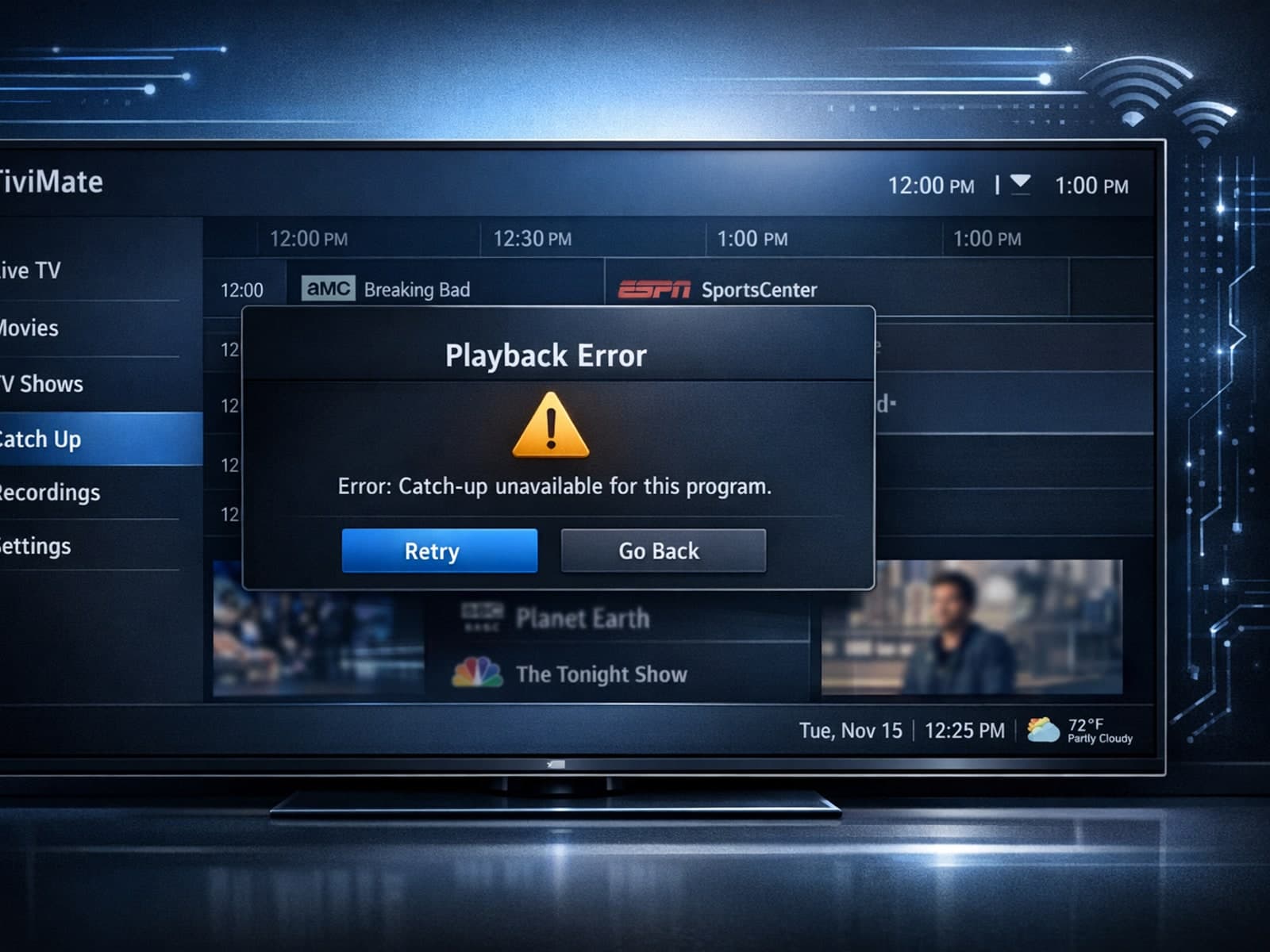
If your catch-up feature in TiviMate isn’t working, the fundamental reasons often lie in your IPTV playlist source or server configuration rather than the app itself.
