
Best WiFi Settings for IPTV on Fire TV Stick to Reduce Buffering

Quick answer
When streaming IPTV on a Fire TV Stick, selecting the right Wi-Fi settings is crucial for smooth playback and minimal buffering. The best Wi-Fi configuration includes using the 5 GHz band where possible, choosing a less congested Wi-Fi channel, assigning a static IP address, a...
Reviewed Against
• Fire TV and Fire OS device capabilities, networking, and storage limits
• Home-network checks such as Wi-Fi strength, Ethernet fallback, DNS changes, congestion, and local storage pressure
Applies To
• Fire TV Stick, Fire TV Cube, and Fire OS playback or networking questions
• Playback problems that change with connection quality, device load, app cache state, or time of day
Does not apply when
• You are troubleshooting a smart-TV app or set-top box with a different hardware and settings path.
• Only one channel, event, or provider-side endpoint is failing while the rest of the service stays stable.
Corroborating Resources
Fire TV device specifications overviewHelpful for checking Fire TV hardware families, platform differences, and device-level constraints.
Fire TV streaming media player specsUseful for codec, storage, Wi-Fi, and Ethernet-adapter expectations on Fire TV sticks and boxes.
Android TV video and game troubleshootingUseful for Wi-Fi, updates, app cache, and playback troubleshooting steps that also mirror IPTV failure paths.
Android TV storage helpHelpful when playback issues point to low storage, cache pressure, or app-data cleanup decisions.
Topic Cluster
Part of the Network Optimization cluster
Practical network changes that improve IPTV stability, from Ethernet choices to Wi-Fi tradeoffs and local congestion fixes. This page sits in troubleshoot and fix for that topic path.
On this page
Best WiFi Settings for IPTV on Fire TV Stick to Reduce Buffering
When streaming IPTV on a Fire TV Stick, selecting the right Wi-Fi settings is crucial for smooth playback and minimal buffering. The best Wi-Fi configuration includes using the 5 GHz band where possible, choosing a less congested Wi-Fi channel, assigning a static IP address, and optimizing DNS settings. These adjustments help reduce interference, stabilize your connection, and improve the overall IPTV experience on your device.
What you'll learn
- Why the 5 GHz Wi-Fi band is preferable for IPTV on Fire TV Stick
- How to select the best Wi-Fi channel to minimize interference
- Setting a static IP address on Fire TV Stick for stable streaming
- Adjusting DNS settings to improve domain resolution speed
- Troubleshooting common Wi-Fi issues that affect IPTV
Why Choose the 5 GHz Wi-Fi Band for IPTV on Fire TV Stick
Differences Between 2.4 GHz and 5 GHz Bands
Wi-Fi routers typically broadcast on two frequency bands: 2.4 GHz and 5 GHz. The 2.4 GHz band has better range but more interference because many devices (cordless phones, microwaves, neighboring Wi-Fi networks) operate here. The 5 GHz band offers greater bandwidth and less interference but with somewhat reduced range.
Benefits of 5 GHz for IPTV Streaming
For IPTV streaming where steady throughput and minimal latency are important, 5 GHz is usually superior:
- Higher throughput: Supports faster data rates for HD and 4K IPTV.
- Less crowded: Fewer devices use 5 GHz, leading to less Wi-Fi interference.
- Lower latency: Reduces buffering and lag during channel switches or live streams.
How to Connect Fire TV Stick to 5 GHz Wi-Fi
When accessing your Fire TV Stick's network settings, look for your 5 GHz SSID (network name). Some routers use the same network name for both bands, but often they are named to differentiate (e.g., MyWiFi_5G). Connect to the 5 GHz network instead of 2.4 GHz for optimal IPTV performance.
Choosing the Best Wi-Fi Channel to Minimize Interference
Understanding Wi-Fi Channels
Each Wi-Fi band is divided into channels (frequency sub-bands). For 2.4 GHz, common channels are 1, 6, and 11. The 5 GHz band has many more channels, some of which may suffer less interference depending on your environment.
How to Scan for the Least Crowded Channel
Use Wi-Fi analyzer apps (available for smartphones or PC) to scan your environment and identify which channels nearby networks occupy.
Steps to Change Wi-Fi Channel on Your Router
- Log in to your router’s admin panel (usually accessible via a browser at 192.168.1.1 or 192.168.0.1).
- Navigate to wireless settings.
- Select the 5 GHz band.
- Choose a channel with low congestion, referencing your scan data.
- Save changes and restart your router.
Changing to a cleaner channel reduces interference and can notably improve IPTV stream stability.
Assigning a Static IP Address on Fire TV Stick for IPTV
Why Use a Static IP?
By default, devices get a dynamic IP via DHCP, which can change over time. IPTV apps or your network configuration might perform better with a static IP by reducing potential IP conflicts and simplifying port forwarding if needed.
How to Assign Static IP on Fire TV Stick
- Go to Settings > Network.
- Select your connected Wi-Fi network.
- Choose Advanced settings.
- Note your current IP details (IP address, subnet mask, gateway).
- Select Configure IP and switch from DHCP to Manual.
- Enter the IP address (use a consistent address in your router’s subnet), subnet mask, and gateway.
- Save settings and reconnect.
Ensure the static IP does not conflict with other devices by choosing an address outside your router’s DHCP range.
Optimizing DNS Settings for IPTV Access on Fire TV Stick
What is DNS?
The Domain Name System (DNS) translates domain names (like example.com) into IP addresses. A faster or more reliable DNS can reduce delays in stream loading.
Recommended DNS Options
Consider using DNS services known for speed and reliability, such as Google DNS (8.8.8.8 and 8.8.4.4) or Cloudflare DNS (1.1.1.1).
How to Change DNS on Fire TV Stick
Fire TV Stick does not natively allow DNS changes in the main Wi-Fi settings. To change DNS:
- Method 1: Change DNS settings on your router, affecting all devices.
- Method 2: Set a static IP on Fire TV Stick and specify the DNS servers manually in the network section.
Changing DNS resolves some IPTV provider access issues and speeds up channel loading.
Troubleshooting Common Wi-Fi Problems Affecting IPTV on Fire TV Stick
Buffering and Freezing
- Cause: Weak Wi-Fi signal or interference.
- Fix: Move router closer, switch to 5 GHz band, select cleaner channel.
IPTV App Fails to Connect
- Cause: Network conflicts or DNS errors.
- Fix: Assign static IP, change DNS servers.
Slow Channel Switching
- Cause: DNS delays or congested network.
- Fix: Use faster DNS, limit other device bandwidth usage.
Fire TV Stick Storage Issues
If IPTV lags despite good Wi-Fi, see Fire TV Stick Storage Issues Causing IPTV Lag for a dedicated guide.
Who Should Use These Wi-Fi Settings?
This guidance targets users streaming IPTV on a Fire TV Stick using Wi-Fi (especially those using popular IPTV apps). It assumes you have access to your Wi-Fi router settings.
If you connect via Ethernet, some Wi-Fi tips do not apply directly. Also, if you use other devices like Smart TVs or Android TV boxes, consult device-specific Wi-Fi optimization guides.
Summary Checklist for Best Wi-Fi Settings
| Step | Detail | Benefit |
|---|---|---|
| Use 5 GHz Band | Connect Fire TV Stick to 5 GHz | Higher speed, less interference |
| Select Low-Congestion Channel | Scan and set clean channel | Reduced Wi-Fi noise |
| Set Static IP | Assign manual IP address | Stable, consistent address |
| Adjust DNS Servers | Use reliable DNS (e.g. 1.1.1.1) | Faster domain resolution |
| Restart Devices | Apply new network settings | Fix temporary glitches |
FAQ
Q: Can I use 2.4 GHz Wi-Fi for IPTV on Fire TV Stick?
A: Yes, but 2.4 GHz often suffers more interference and may cause buffering, especially in congested environments.
Q: How do I know if my Fire TV Stick is on 5 GHz?
A: Check the network name during connection; many routers differentiate 5 GHz SSIDs. You can also verify in Fire TV Stick network settings.
Q: What if changing Wi-Fi settings does not improve IPTV streaming?
A: Consider using an Ethernet adapter for Fire TV Stick or check IPTV app-specific issues and your internet speed.
Q: Are these Wi-Fi optimizations compatible with all IPTV apps?
A: Yes, these network optimizations benefit IPTV streaming generally but do not address app-specific bugs.
Conclusion
Optimizing Wi-Fi settings on your Fire TV Stick is a practical way to improve IPTV streaming quality and reduce buffering. Prioritize connecting to the 5 GHz band, pick a clear Wi-Fi channel, assign a static IP, and use fast DNS servers. These steps will stabilize your network connection and enhance your IPTV experience. Remember to troubleshoot systematically and adjust settings incrementally to find the best setup for your environment.
For more detailed Fire TV Stick performance improvements, consider reviewing guides on storage management or IPTV app-specific troubleshooting linked in our resources.
Explore related resources on optimizing your IPTV setup:
- Fire TV Stick Storage Issues Causing IPTV Lag
- 5 GHz WiFi
- Fire TV Cube vs Fire TV Stick 4K Max for IPTV: Comparison and Decision
- IPTV Smarters Invalid Details Error: Causes and Precise Fixes
This article focuses strictly on Wi-Fi settings for IPTV on Fire TV Stick and assumes foundational knowledge of IPTV and your device's network interface.
Frequently Asked Questions
Why is 5 GHz Wi-Fi better for IPTV on Fire TV Stick?
5 GHz Wi-Fi offers higher bandwidth and less interference compared to 2.4 GHz, reducing buffering and improving IPTV stream quality on Fire TV Stick.
Can using a static IP improve IPTV performance on Fire TV Stick?
Yes. Assigning a static IP to your Fire TV Stick can stabilize the connection by preventing occasional IP conflicts, leading to smoother IPTV streaming.
What is the best Wi-Fi channel for IPTV on Fire TV Stick?
The best Wi-Fi channel varies locally. Choose a channel with the least congestion by scanning nearby Wi-Fi networks to minimize interference during IPTV streaming.
Does changing DNS settings affect IPTV streaming on Fire TV Stick?
Using reliable DNS servers can improve IPTV stream loading times and reduce connection errors, but it depends on your ISP and DNS provider.
Should I use Wi-Fi or Ethernet for IPTV on Fire TV Stick?
Ethernet provides the most stable connection and is preferable if available. Wi-Fi can work well if optimized, especially using 5 GHz band and proper settings.
Keep exploring
More explainers that connect naturally to this setup, workflow, or troubleshooting path.
TiviMate is a popular IPTV player app for Android TV and similar devices, known for its advanced channel management options. Organizing favorites and groups in TiviMate lets you customize your IPTV watching experience by categorizing.

When you switch channels on your IPTV service and the screen freezes or lags, it’s frustrating and disrupts your viewing experience. IPTV freezing during channel switching is most often caused by network delays, buffering, or the IPTV.

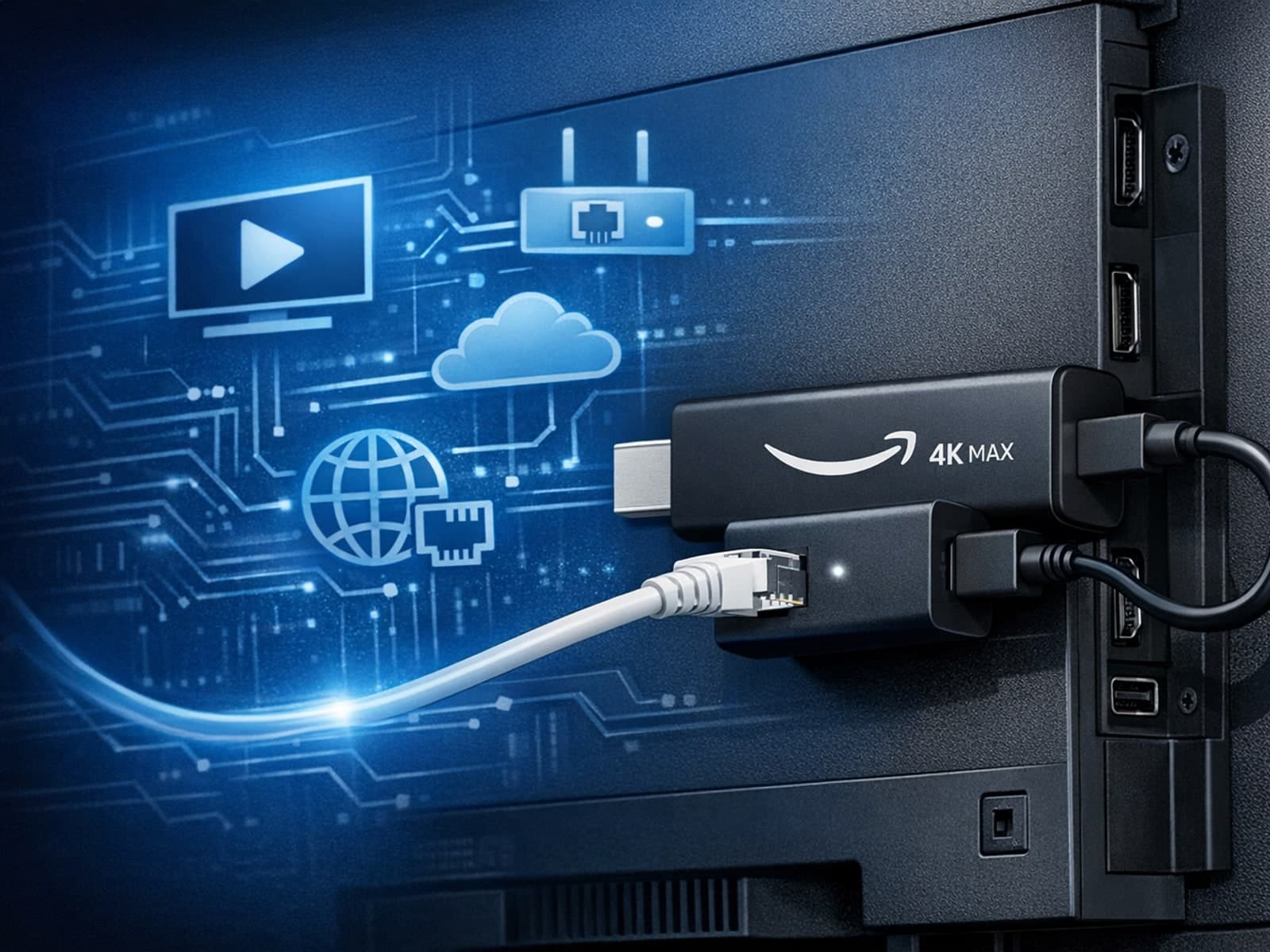
The Amazon Fire TV Stick 4K Max offers a powerful streaming experience with improved hardware and faster Wi-Fi connectivity. However, some users prefer the stability and reliability of a wired Ethernet connection over Wi-Fi.