
Fix Missing Channel Logos in TiviMate

Quick answer
If your channel logos are missing in TiviMate, the problem usually stems from your IPTV playlist lacking logo information, incorrect logo paths, or caching issues within the app. Fixing this involves verifying that your playlist includes proper logo URLs, refreshing the logo d...
Reviewed Against
• TiviMate playlist, EPG, and player-setting workflows
• Server-URL formatting, HTTP response handling, and account-entry failure patterns
Applies To
• TiviMate setups on Android TV, Google TV, or Fire OS style streaming devices
• Errors caused by malformed URLs, wrong credentials, expired tokens, or unreachable playlist endpoints
Does not apply when
• Your app uses a different menu layout or naming scheme than TiviMate.
• The provider confirms the service is down or the account has been deliberately blocked upstream.
Corroborating Resources
HTTP response status codesUseful when an IPTV app surfaces 401, 403, 404, or 5xx style errors during login or playlist refreshes.
URL structure referenceHelpful for checking server URLs, source links, and path/query mistakes in portal or playlist setups.
Topic Cluster
Part of the Channel Logos cluster
Browse practical IPTV articles about Channel Logos, including setup choices, troubleshooting paths, and follow-on guides. This page sits in troubleshoot and fix for that topic path.
On this page
Fix Missing Channel Logos in TiviMate
If your channel logos are missing in TiviMate, the problem usually stems from your IPTV playlist lacking logo information, incorrect logo paths, or caching issues within the app. Fixing this involves verifying that your playlist includes proper logo URLs, refreshing the logo data inside TiviMate, and confirming that your settings allow logos to display.
Channels without logos can make navigation harder and reduce your user experience, so restoring them is important and typically straightforward.
What you'll learn
- Why channel logos might be missing in TiviMate
- How to check and update your playlist for logos
- Steps to refresh and clear logo cache
- Important TiviMate settings for displaying logos
- When to seek alternate playlist sources or advanced fixes
Why Are Channel Logos Missing in TiviMate?
Channel logos in TiviMate come from metadata included in your IPTV playlist. Each channel entry in the playlist can have an image URL pointing to a logo. If the playlist lacks these URLs or they are incorrect, TiviMate has no logo to display.
Additionally, TiviMate caches logos locally to speed up loading. Sometimes this cache becomes outdated or corrupted, causing logos to disappear even if your playlist has valid logo data.
Your settings may also control whether logos display; if disabled, logos won't show regardless of playlist data.
How to Check and Update Your Playlist for Channel Logos
Inspecting Your Playlist
An IPTV playlist is typically an M3U or M3U Plus file containing channels and metadata. To check logos:
- Open the playlist file on a text editor.
- Look for
tvg-logoattributes in channel entries, e.g.,tvg-logo="http://example.com/logo.png". - If absent, your playlist likely has no logos.
If you obtained the playlist from a provider, ask if a version with logos is available.
Updating or Switching Playlists
If your current playlist has no logos:
- Request a playlist version with logos from your IPTV provider.
- Use a third-party playlist generator or editor to add logos manually.
- Alternatively, use an Xtream Codes API-based playlist if supported, which often includes logos automatically.
Refreshing and Clearing Logo Cache in TiviMate
TiviMate stores channel logos to avoid re-downloading. If logos are missing, refreshing this cache can help.
Steps to Refresh Logos in TiviMate
- Open the TiviMate app.
- Go to Settings > Playlist Settings.
- Look for an option labeled Refresh Logos or similar, and select it.
- Wait for the refresh process to finish.
If logos remain missing after refreshing:
- Try clearing the app cache via your device settings (Android TV or Firestick): Settings > Apps > TiviMate > Clear Cache.
- Restart the device and reopen TiviMate.
Important Settings for Displaying Channel Logos in TiviMate
Verify these settings to ensure logos display:
- Enable Display of Channel Logos: In TiviMate’s settings, check that the option to show channel logos is ON.
- Update Interval: Some versions may allow adjusting how often TiviMate updates logo data; set it to a frequent interval for fresh logos.
Incorrect display settings can prevent logos from showing even if data is available.
Common Mistakes and Troubleshooting
Checklist of Common Issues
| Issue | Explanation | Fix Suggestion |
|---|---|---|
| Playlist lacks logo URLs | The playlist doesn’t include or references incorrect logo paths. | Get new playlist or add logos manually |
| Cached data is outdated or corrupt | Old cache prevents new logos from showing. | Refresh logos and clear cache |
| TiviMate settings disable logos | Channel logo display turned off in app settings. | Enable logo display in settings |
| Network restrictions block logos | Network or firewall blocks access to logo URLs. | Check network settings or use VPN |
| App version is outdated | Older TiviMate versions might have bugs affecting logos. | Update TiviMate to latest version |
When Different Guidance Applies
This guide focuses on standard IPTV playlists (M3U or Xtream Codes) used with TiviMate on Android TV, Fire TV Stick, or similar devices. If you're using other IPTV clients or hardware (like Enigma2 boxes or Kodi), logo troubleshooting differs and specialized help should be sought.
Also, if your playlist source is highly customized or encrypted, or if channel numbering or EPG is problematic, that may require separate diagnostics.
Summary Checklist: Steps to Fix Missing Channel Logos in TiviMate
| Step Number | Action | Purpose |
|---|---|---|
| 1 | Verify your playlist includes logo URLs | Ensure your source can supply logos |
| 2 | Refresh logos and clear app cache | Remove corrupted or outdated logo cache |
| 3 | Check TiviMate app settings | Make sure logos display is enabled |
| 4 | Update or replace playlist if necessary | Use a playlist richer in metadata |
| 5 | Update TiviMate app | Fix bugs and improve logo handling |
Frequently Asked Questions
Why do some channels still show no logo even after refreshing?
Some channels may lack logo URLs in the playlist or their logo links are broken. You can manually add logo URLs to your playlist or search for alternative sources.
Can I manually add channel logos in TiviMate?
TiviMate itself doesn't support manual logo assignment through the app interface but editing your M3U playlist to include tvg-logo tags pointing to valid image URLs will display logos correctly.
Should I be concerned about image formats for logos?
Common formats like PNG and JPEG are generally supported. Ensure your playlist's logo URLs point to accessible and standard format images.
Is network speed or DNS relevant to missing logos?
While logos are small, slow or blocked networks can fail to download logos. Make sure DNS and firewall settings allow access to domains hosting logos.
Conclusion
Missing channel logos in TiviMate usually result from missing or incorrect logo data in your playlist, caching issues, or disabled display settings. Start by confirming your playlist includes proper logo URLs, then refresh or clear cache in TiviMate. Ensure your app settings allow logo display and consider updating or switching your playlist if needed. Following these ordered steps will restore missing logos and improve your IPTV viewing experience.
For advanced playlist management tips, consider our guide on How to Organize Favorites and Groups in TiviMate and learn more about Channel Groups to further streamline your interface.
Related Resources:
- Why IPTV Freezes During Channel Switching and How to Fix It
- EPG topic for improving channel guides
Tags: TiviMate, IPTV, Channel Logos, Troubleshooting, Playlist
Keep exploring
More explainers that connect naturally to this setup, workflow, or troubleshooting path.
TiviMate is a popular IPTV player app for Android TV and similar devices, known for its advanced channel management options. Organizing favorites and groups in TiviMate lets you customize your IPTV watching experience by categorizing.

When you switch channels on your IPTV service and the screen freezes or lags, it’s frustrating and disrupts your viewing experience. IPTV freezing during channel switching is most often caused by network delays, buffering, or the IPTV.

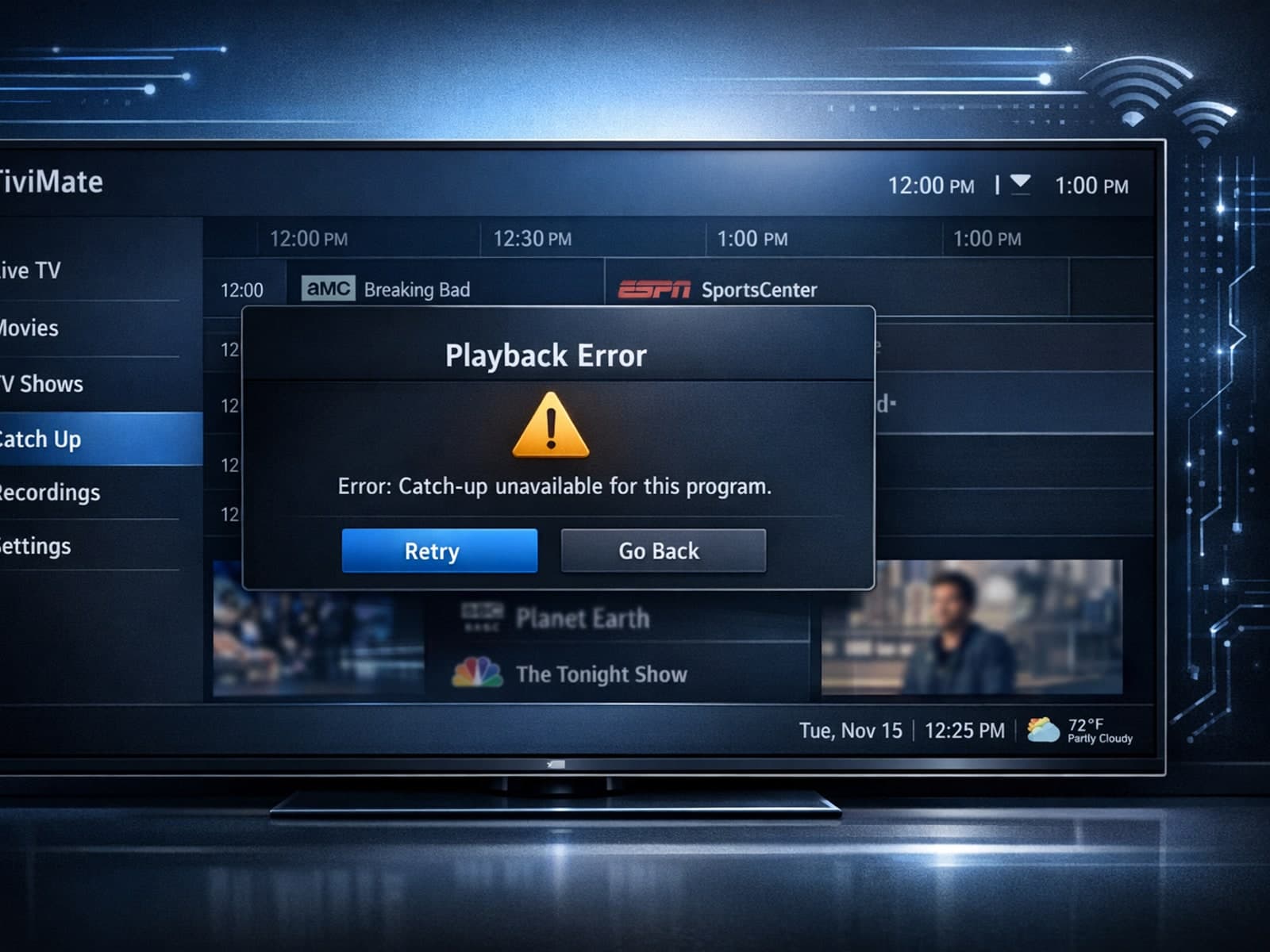
If your catch-up feature in TiviMate isn’t working, the fundamental reasons often lie in your IPTV playlist source or server configuration rather than the app itself.
