
TiviMate Playlist Not Updating After Refresh: Causes and Fixes

Quick answer
If your TiviMate playlist fails to update after you hit the refresh button, the cause often lies in cached data, expired or inaccessible playlist URLs, or temporary network problems. This guide goes step-by-step through common causes and concrete troubleshooting actions to get...
Reviewed Against
• TiviMate playlist, EPG, and player-setting workflows
• Home-network checks such as Wi-Fi strength, Ethernet fallback, DNS changes, congestion, and local storage pressure
Applies To
• TiviMate setups on Android TV, Google TV, or Fire OS style streaming devices
• Playback problems that change with connection quality, device load, app cache state, or time of day
Does not apply when
• Your app uses a different menu layout or naming scheme than TiviMate.
• Only one channel, event, or provider-side endpoint is failing while the rest of the service stays stable.
Corroborating Resources
Android TV video and game troubleshootingUseful for Wi-Fi, updates, app cache, and playback troubleshooting steps that also mirror IPTV failure paths.
Android TV storage helpHelpful when playback issues point to low storage, cache pressure, or app-data cleanup decisions.
Topic Cluster
Part of the IPTV cluster
Browse practical IPTV articles about IPTV, including setup choices, troubleshooting paths, and follow-on guides. This page sits in more in this topic for that topic path.
On this page
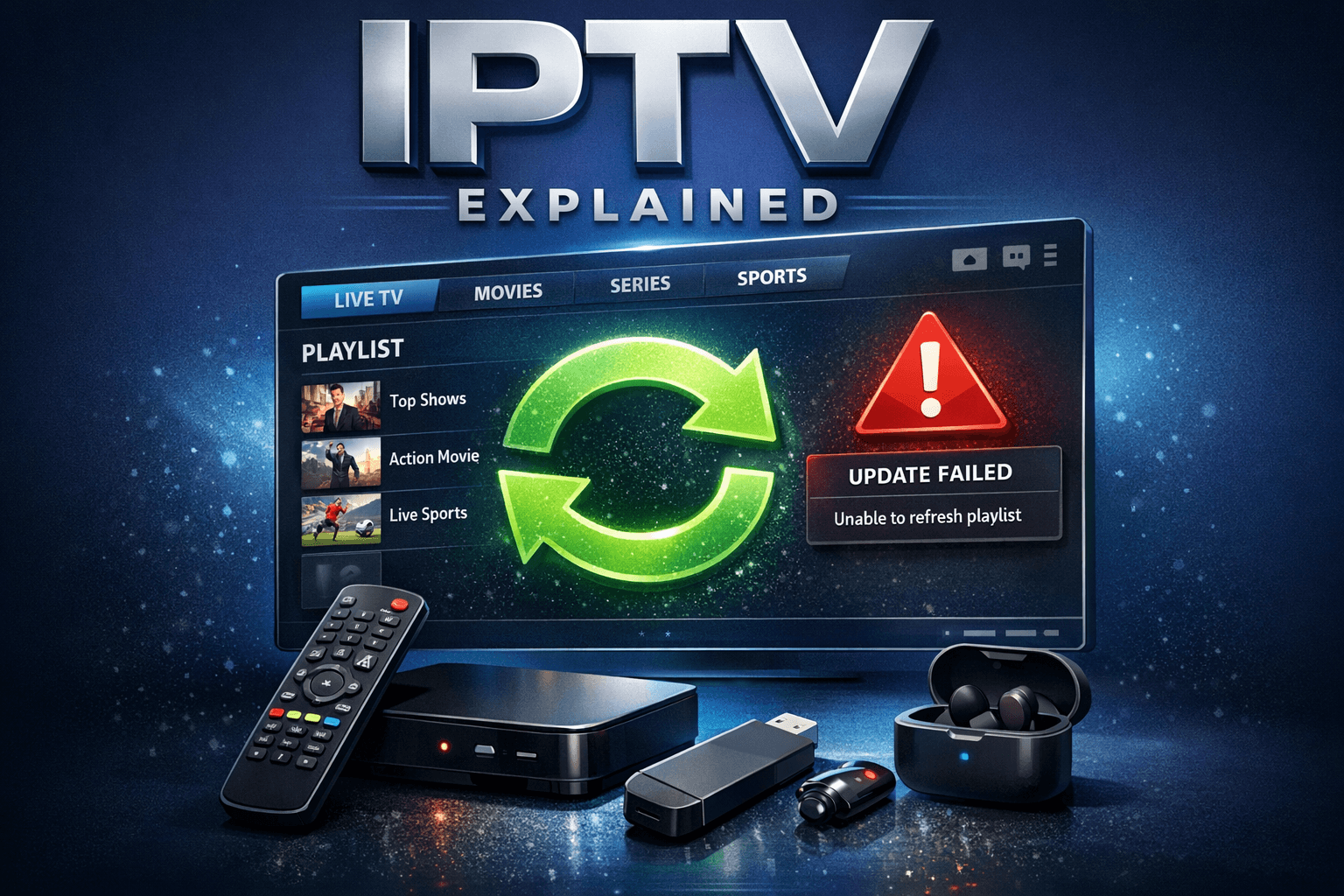
TiviMate Playlist Not Updating After Refresh: Causes and Fixes
If your TiviMate playlist fails to update after you hit the refresh button, the cause often lies in cached data, expired or inaccessible playlist URLs, or temporary network problems. This guide goes step-by-step through common causes and concrete troubleshooting actions to get your IPTV playlist updating normally again.
What you'll learn
- Why TiviMate playlists sometimes do not refresh as expected
- How to check and fix issues with your playlist URL
- Steps to clear TiviMate cache and why it matters
- The role of a stable internet connection in playlist updates
- When and how to remove and re-add playlists
- Key troubleshooting risks and when to switch diagnostic paths
Understanding Why TiviMate Playlists May Not Update
When you hit the "refresh playlist" option in TiviMate, the app attempts to fetch your IPTV playlist (usually in M3U format) from the source URL anew. This process can fail silently or show error messages depending on the problem.
Common causes:
- Playlist Caching: TiviMate stores older playlist copies locally to optimize loading. Sometimes, this cached data prevents fresh versions from replacing it.
- Expired or Revoked URL: IPTV providers often rotate or revoke playlist URLs. If yours is no longer valid, TiviMate can't fetch updates.
- Network Connectivity Issues: An unstable or non-existent internet connection blocks the playlist update.
- App or Device Glitches: Software bugs or device memory issues can cause updates to stall.
Understanding which is at fault lets you pick the right fix.
Checking and Validating Your Playlist URL
The playlist URL is the web address pointing to your IPTV M3U file or streaming source. If it's expired, invalid, or changed, TiviMate can't update the playlist.
How to check your playlist URL:
- Copy the playlist URL from TiviMate's settings.
- Open the URL in a web browser on a PC or mobile device.
- If the browser returns a download prompt or displays raw M3U text, the URL is valid.
- If you see an error page (like 404, 403, or server timeouts), the URL is likely outdated or blocked.
What to do if playlist URL is invalid:
- Contact your IPTV provider for a current URL.
- Replace the URL manually in TiviMate's playlist settings.
For instructions on M3U and Xtream URL differences and updates, see M3U Plus vs Xtream Codes API for Playlist Updates.
Clearing TiviMate Cache to Force Playlist Refresh
TiviMate stores parts of your playlist and related data locally in cache to speed up loading. Sometimes this cache prevents new versions from loading.
Steps to clear cache on Android TV or Fire TV:
- Navigate to your device's main Settings.
- Go to 'Applications' or 'Apps'.
- Find and select 'TiviMate'.
- Choose 'Storage & Cache'.
- Select 'Clear Cache'.
After clearing the cache, open TiviMate and refresh the playlist again. This forces the app to request the latest version from the server.
Verifying Network Connection Stability
A stable internet connection is crucial for TiviMate to fetch and refresh playlists. Even brief outages or slowdowns can interrupt updates.
How to verify connection:
- Test internet by browsing websites on another device.
- Run a speed test; ensure adequate download speed (usually 5 Mbps or higher for IPTV).
- Restart your router or streaming device to fix transient glitches.
For Fire TV-specific network tips, see Best WiFi Settings for IPTV on Fire TV Stick.
Removing and Re-Adding Your Playlist
If refresh still fails, removing and re-adding can force a clean playlist download.
How to remove and re-add your playlist:
- Open TiviMate.
- Go to 'Settings' > 'Playlists'.
- Select the playlist giving trouble.
- Choose 'Remove Playlist'. Confirm removal.
- Back in Playlists, add a new playlist using the playlist URL.
- Let TiviMate download the fresh playlist.
This process resets any stuck internal state related to that playlist.
When to Restart the App or Device
If problems persist, try fully closing TiviMate and your streaming device, then restarting them.
- Restarting clears running processes and can resolve temporary bugs.
- After reboot, reload TiviMate and attempt a playlist refresh.
Troubleshooting and Common Mistakes
| Mistake | Why it Happens | How to Avoid or Fix |
|---|---|---|
| Using expired playlist URLs | Provider changes or revokes them | Verify URL regularly or ask support |
| Forgetting to clear cache | Cached data blocks update | Clear cache after URL changes |
| Ignoring network issues | Updates need good internet | Test connection before troubleshooting |
| Skipping app/device restart | Temporary glitches persist | Restart devices periodically |
Who this guide applies to
This article targets TiviMate users on Android TV-based devices or Amazon Fire TV who use external IPTV URLs (M3U or Xtream). It does not cover problems exclusive to custom APK installations or IPTV services embedded natively into hardware.
If you use a different IPTV app or device type, see device-specific guides, or the article on TiviMate EPG Source URL Not Working for related metadata update issues.
Frequently Asked Questions
Why does TiviMate playlist not update after I press refresh?
This often results from cached data, broken URLs, or network interruptions preventing a fresh playlist fetch.
How do I know if my playlist URL is expired?
Try opening it in a web browser; an error page or failure to download the playlist indicates expiration.
Will reinstalling TiviMate fix playlist update problems?
Sometimes, but clearing cache or updating URLs usually suffices before reinstalling.
Can network issues cause TiviMate playlist update failures?
Yes, unstable or slow internet will block updates; test and fix your network first.
Conclusion
TiviMate playlists not updating after hitting refresh usually trace back to caching, invalid playlist URLs, or network problems. The step-by-step fixes—verifying URLs, clearing cache, ensuring internet stability, and re-adding playlists—resolve most cases. If issues persist, consider app or device restarts and checking with your IPTV provider for updated playlist links.
Following this focused approach ensures your TiviMate playlist stays current, preventing playback disruptions and optimizing your IPTV experience.
For additional support, explore related guides on playlist updates, channel logos, and EPG source troubleshooting linked above.
| Step | Action |
|---|---|
| 1 | Check internet connection stability |
| 2 | Verify playlist URL accessibility |
| 3 | Clear TiviMate app cache |
| 4 | Remove and re-add the playlist |
| 5 | Restart TiviMate and your device if needed |
Keep exploring
More explainers that connect naturally to this setup, workflow, or troubleshooting path.
TiviMate is a popular IPTV player app for Android TV and similar devices, known for its advanced channel management options. Organizing favorites and groups in TiviMate lets you customize your IPTV watching experience by categorizing.

When you switch channels on your IPTV service and the screen freezes or lags, it’s frustrating and disrupts your viewing experience. IPTV freezing during channel switching is most often caused by network delays, buffering, or the IPTV.

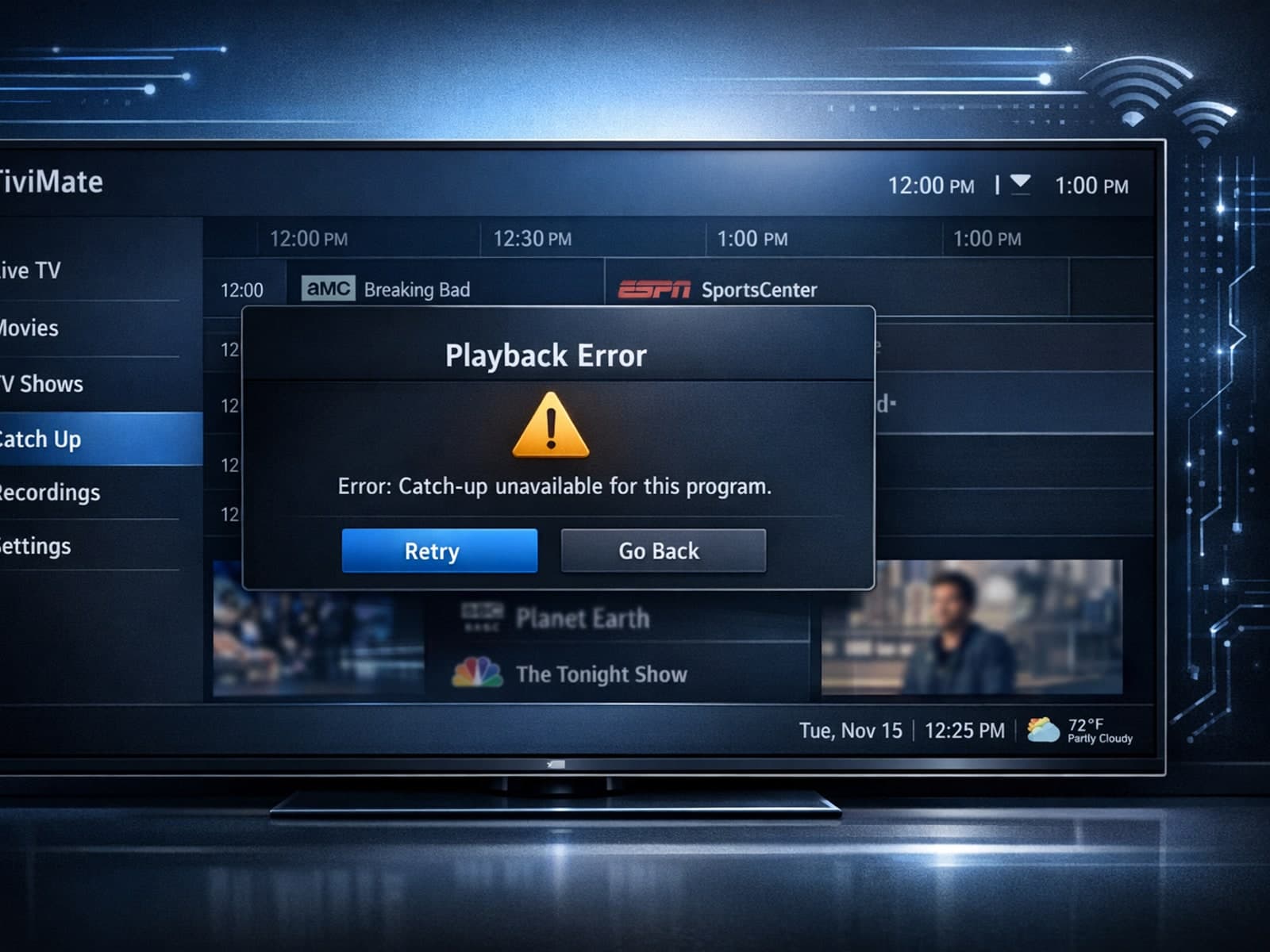
If your catch-up feature in TiviMate isn’t working, the fundamental reasons often lie in your IPTV playlist source or server configuration rather than the app itself.
