
Fire TV Stick Storage Issues Causing IPTV Lag

Quick answer
If your IPTV streams lag on your Fire TV Stick, limited device storage might be a culprit. When the Fire TV Stick runs low on storage, it struggles to manage app cache and data efficiently, causing buffering and delayed response in IPTV applications. This guide helps you ident...
Reviewed Against
• Fire TV and Fire OS device capabilities, networking, and storage limits
• Home-network checks such as Wi-Fi strength, Ethernet fallback, DNS changes, congestion, and local storage pressure
Applies To
• Fire TV Stick, Fire TV Cube, and Fire OS playback or networking questions
• Playback problems that change with connection quality, device load, app cache state, or time of day
Does not apply when
• You are troubleshooting a smart-TV app or set-top box with a different hardware and settings path.
• Only one channel, event, or provider-side endpoint is failing while the rest of the service stays stable.
Corroborating Resources
Fire TV device specifications overviewHelpful for checking Fire TV hardware families, platform differences, and device-level constraints.
Fire TV streaming media player specsUseful for codec, storage, Wi-Fi, and Ethernet-adapter expectations on Fire TV sticks and boxes.
Android TV video and game troubleshootingUseful for Wi-Fi, updates, app cache, and playback troubleshooting steps that also mirror IPTV failure paths.
Android TV storage helpHelpful when playback issues point to low storage, cache pressure, or app-data cleanup decisions.
On this page
Fire TV Stick Storage Issues Causing IPTV Lag
If your IPTV streams lag on your Fire TV Stick, limited device storage might be a culprit. When the Fire TV Stick runs low on storage, it struggles to manage app cache and data efficiently, causing buffering and delayed response in IPTV applications. This guide helps you identify storage-related issues causing IPTV lag and outlines practical steps to fix and prevent them.
What you'll learn
- How storage affects IPTV streaming performance on Fire TV Stick
- Ways to check and free up Fire TV Stick storage
- Clearing cache and managing app data to reduce lag
- Expanding storage options for compatible Fire TV Stick models
- When to consider alternative troubleshooting paths or device upgrades
How Storage Impacts IPTV Streaming on Fire TV Stick
Storage on the Fire TV Stick refers to the internal flash memory used to hold apps, app data, and cache. IPTV apps rely on buffering portions of the video stream locally before playback. When storage is critically low, the device cannot write sufficient temporary files quickly, leading to increased buffering and lag.
Why storage matters for IPTV apps
- Cache storage: IPTV apps use cache to temporarily store segments of video streams to allow smooth playback without network delays.
- App data: Preferences, playlists, and downloaded metadata take up space, impacting app speed.
- System operations: The Fire TV OS requires free storage to manage running apps and background tasks efficiently.
If the device's free space falls below 10-15%, users commonly notice slower app launches, playback buffering, or even app crashes.
Checking and Managing Fire TV Stick Storage
Before making assumptions about IPTV lag causes, verify your Fire TV Stick storage status.
How to check available storage
- From the Fire TV main screen, go to Settings.
- Select My Fire TV or Device & Software depending on your version.
- Choose About.
- Select Storage to view used and available storage.
Freeing up space
If free storage is below 1 GB (or roughly 10-15%), follow these next steps:
- Uninstall apps you no longer use.
- Clear cache and data for IPTV and other apps.
- Delete downloaded files or recordings if applicable.
Clearing Cache and App Data to Reduce IPTV Lag
Cache builds over time and can become corrupted or excessive, contributing to sluggish app behavior.
Steps to clear cache and data on Fire TV Stick
- Open Settings > Applications > Manage Installed Applications.
- Scroll to your IPTV app.
- Select Clear Cache.
- If problems persist, select Clear Data (note this will erase app settings and saved data).
Tip: Clearing data can solve playback issues but requires re-login or playlist reloading in your IPTV app.
Managing Installed Apps and Background Processes
Too many apps consume both storage and RAM, slowing down IPTV performance.
Best practices
- Regularly review and uninstall unused applications.
- Avoid installing unnecessary customization or utility apps that run in background.
- Restart the Fire TV Stick periodically to refresh system memory.
Restarting clears temporary files and can temporarily relieve storage pressure.
Expanding or Offloading Storage
Some newer Fire TV Stick models (e.g., Fire TV Stick 4K Max) support external storage via USB or microSD adapters.
Options to expand storage
| Method | Pros | Cons | Notes |
|---|---|---|---|
| USB OTG with USB Drive | Adds significant space | Requires USB OTG adapter and flash drive | Compatible with specific models only |
| MicroSD Card Expansion | Compact, portable | May require adapter; less space than USB drives | Often used with Fire TV Cube, not classic Fire TV Stick |
Check your device model to verify compatibility before purchasing adapters.
Offloading data
- Use cloud storage or a network attached storage (NAS) to store media files, reducing local storage needs.
- Remove downloaded recordings or screenshots from device storage.
Troubleshooting and Common Mistakes
Who this guide applies to
- Fire TV Stick users running IPTV apps who experience buffering or lag seemingly unrelated to network issues.
- Users with limited remaining storage (less than 1 GB free).
When to follow a different path
- If your Fire TV Stick has ample free storage but IPTV lag persists, investigate network performance or IPTV server issues.
- For lag related specifically to app login errors or playlist updates, consider guidance in articles like IPTV Smarters Invalid Details Error.
- For buffering related strictly to network quality, consult Best WiFi Settings for IPTV Streaming on Fire TV Stick.
Common mistakes
- Assuming network is always the cause without checking device storage.
- Clearing cache but not uninstalling unused apps that consume space.
- Ignoring Fire TV OS version updates which can improve storage management.
FAQ
Q: Why does low storage on Fire TV Stick cause IPTV lag?
A: Low storage limits the device's ability to manage app data and cache efficiently, leading to slower app performance and buffering.
Q: Can clearing cache improve IPTV streaming on Fire TV Stick?
A: Yes, it removes temporary files that may be corrupted or excessive, helping to improve app responsiveness.
Q: Is uninstalling unused apps or clearing data more effective for storage issues?
A: Uninstalling apps frees more space, but clearing data helps if the IPTV app itself is using excessive storage.
Q: Can external storage solve IPTV lag on all Fire TV Stick models?
A: Not all Fire TV Sticks support external storage. Check your device specs before attempting.
Q: Should I factory reset if IPTV lag continues?
A: Factory reset can fix persistent storage issues but should be a last resort as it erases all data and apps.
Conclusion
Storage limitations on the Fire TV Stick are a common but often overlooked cause of IPTV lag and buffering. By regularly monitoring storage, clearing app caches, managing installed apps, and expanding storage when possible, users can resolve many performance issues. Before assuming network problems, verify your device storage to ensure smooth IPTV streaming.
For further help, consider related resources on WiFi optimization and IPTV app troubleshooting linked above to achieve the best viewing experience.
For additional guidance, explore these recommended reads:
- Best WiFi Settings for IPTV Streaming on Fire TV Stick
- Fire TV Cube vs Fire TV Stick 4K Max for IPTV: Feature and Performance Comparison
- Buffering Troubleshooting
- Amazon Fire TV Topic Overview
Managing your Fire TV Stick storage proactively makes IPTV streaming smoother and more enjoyable.
Frequently Asked Questions
Why does low storage on Fire TV Stick cause IPTV lag?
Low storage limits the device's ability to manage app data and cache efficiently, leading to slower app performance and buffering in IPTV streams.
Can clearing cache improve IPTV streaming on Fire TV Stick?
Yes, clearing cache removes temporary files that may be corrupted or excessive, helping to improve app responsiveness and reduce streaming lag.
Is it better to uninstall unused apps or clear data for storage issues?
Uninstalling unused apps frees more space, but clearing data is helpful if the IPTV app itself uses excessive or corrupted storage.
Will a factory reset solve IPTV lag caused by storage issues?
A factory reset clears all data and apps, freeing all storage, but should be a last resort as it requires reconfiguring the device from scratch.
Can adding external storage fix IPTV lag on all Fire TV Stick models?
Not all Fire TV Stick models support external storage; check your model specifications to see if you can use an SD card or USB drive for extra storage.
Keep exploring
More explainers that connect naturally to this setup, workflow, or troubleshooting path.
TiviMate is a popular IPTV player app for Android TV and similar devices, known for its advanced channel management options. Organizing favorites and groups in TiviMate lets you customize your IPTV watching experience by categorizing.

When you switch channels on your IPTV service and the screen freezes or lags, it’s frustrating and disrupts your viewing experience. IPTV freezing during channel switching is most often caused by network delays, buffering, or the IPTV.

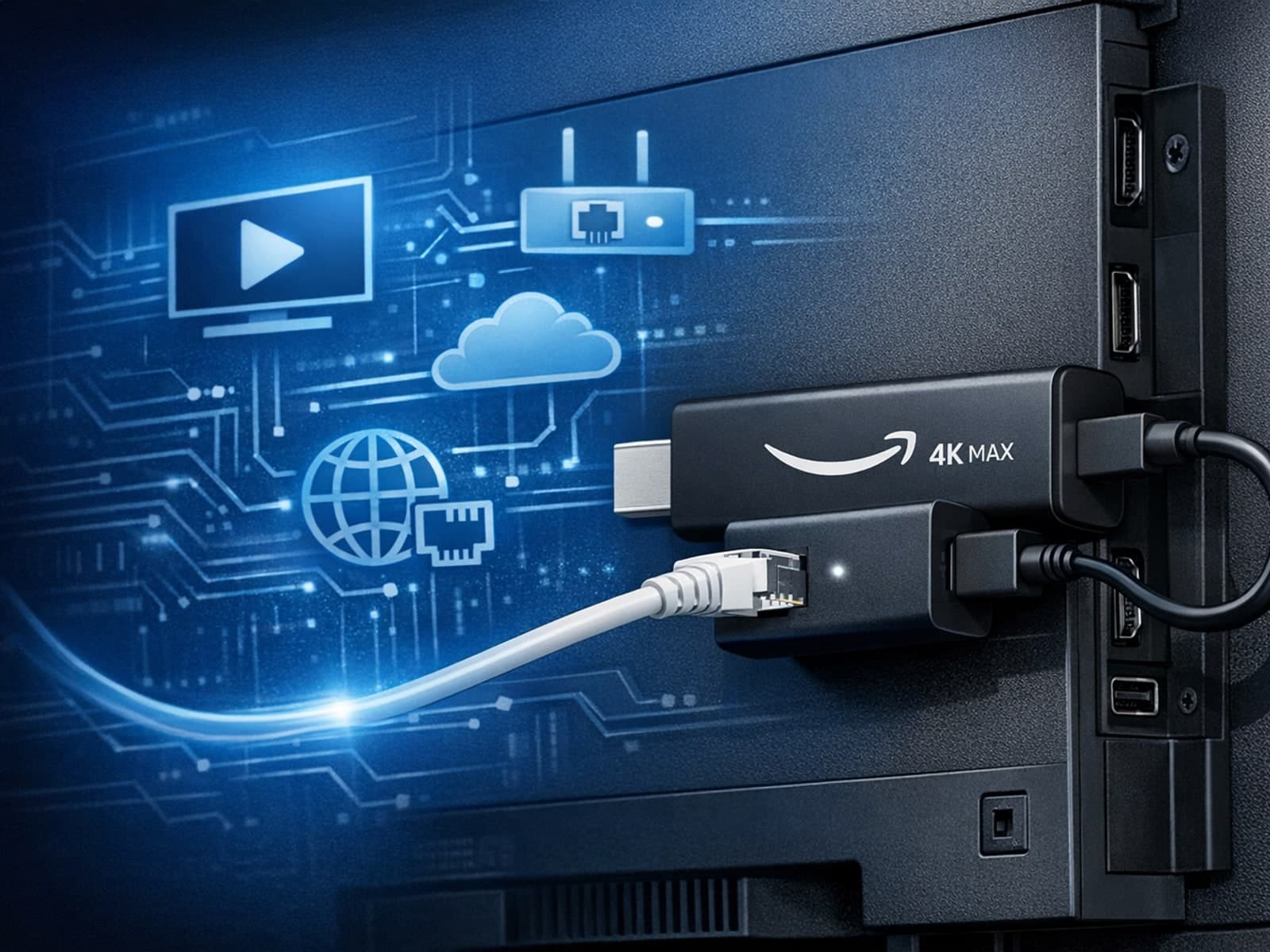
The Amazon Fire TV Stick 4K Max offers a powerful streaming experience with improved hardware and faster Wi-Fi connectivity. However, some users prefer the stability and reliability of a wired Ethernet connection over Wi-Fi.