
Fire TV Stick Storage Issues Causing IPTV Lag

Quick answer
Experiencing IPTV lag on your Fire TV Stick can often be traced back to storage issues. When device storage runs low or becomes cluttered, IPTV apps may struggle to cache data and process streaming efficiently, causing buffering, freezing, or channel-switch delays. This articl...
Reviewed Against
• Fire TV and Fire OS device capabilities, networking, and storage limits
• Home-network checks such as Wi-Fi strength, Ethernet fallback, DNS changes, congestion, and local storage pressure
Applies To
• Fire TV Stick, Fire TV Cube, and Fire OS playback or networking questions
• Playback problems that change with connection quality, device load, app cache state, or time of day
Does not apply when
• You are troubleshooting a smart-TV app or set-top box with a different hardware and settings path.
• Only one channel, event, or provider-side endpoint is failing while the rest of the service stays stable.
Corroborating Resources
Fire TV device specifications overviewHelpful for checking Fire TV hardware families, platform differences, and device-level constraints.
Fire TV streaming media player specsUseful for codec, storage, Wi-Fi, and Ethernet-adapter expectations on Fire TV sticks and boxes.
Android TV video and game troubleshootingUseful for Wi-Fi, updates, app cache, and playback troubleshooting steps that also mirror IPTV failure paths.
Android TV storage helpHelpful when playback issues point to low storage, cache pressure, or app-data cleanup decisions.
Topic Cluster
Part of the IPTV cluster
Browse practical IPTV articles about IPTV, including setup choices, troubleshooting paths, and follow-on guides. This page sits in troubleshoot and fix for that topic path.
On this page
Understanding Fire TV Stick Storage Issues and IPTV Lag
Experiencing IPTV lag on your Fire TV Stick can often be traced back to storage issues. When device storage runs low or becomes cluttered, IPTV apps may struggle to cache data and process streaming efficiently, causing buffering, freezing, or channel-switch delays. This article explains how Fire TV Stick storage problems directly impact IPTV performance and how to resolve these issues with practical steps.
What you'll learn
- How Fire TV Stick storage affects IPTV streaming
- How to check and free up Fire TV Stick storage
- The role of cache and app data in IPTV lag
- When external storage can help
- Practical step-by-step fixes for smoother IPTV playback
How Storage Limits IPTV Performance on Fire TV Stick
Why storage matters for IPTV apps
IPTV apps rely on local storage to cache streaming data, store temporary files, and manage playlist updates. When storage is insufficient, the device cannot keep enough cached content ahead of your viewing, leading to delays and buffering.
Common storage-related symptoms during IPTV use
- Video pauses or buffers frequently
- Delayed channel switches
- IPTV app crashes or slow loading
- App notifications about insufficient storage
These symptoms often worsen over time as storage fills with cached data and app updates accumulate.
Checking Fire TV Stick Storage Status
Before attempting fixes, determine your device's current storage situation.
Steps to check storage
- From the Fire TV main menu, select Settings.
- Choose My Fire TV.
- Select About.
- Choose Storage.
Here, you'll see total, used, and free storage space. Keep in mind Fire TV Sticks typically come with 8–16 GB of storage, much of which is used by the system.
If your available storage is below 1 GB, it's likely contributing to IPTV lag.
Clearing Cache and Removing Unused Apps
What is app cache?
Cache consists of temporary files that apps save to improve loading times. However, cache can accumulate and consume valuable storage, especially if not managed.
How to clear cache for IPTV apps
- Go to Settings > Applications > Manage Installed Applications.
- Select your IPTV app.
- Click Clear cache.
Repeat for other apps that might use considerable storage.
Uninstall unused apps
Unused apps take up storage that could be freed to improve IPTV app performance.
- In Manage Installed Applications, select apps you rarely use.
- Choose Uninstall.
Freeing storage often results in noticeably smoother IPTV streaming.
Using External Storage to Expand Capacity
Can Fire TV Stick use external storage?
Certain Fire TV Stick models (like Fire TV Stick 4K) support USB storage via an OTG (On-The-Go) cable.
Benefits for IPTV
Moving apps or data to external storage can increase free internal space, allowing IPTV apps to cache more data and improve responsiveness.
Setting up external storage
- Connect a compatible USB drive to the OTG cable, then connect to Fire TV Stick.
- In Settings, visit My Fire TV > USB Drive.
- Choose to format and use as internal storage if prompted.
Note: Not all IPTV apps support installation or data storage on external drives. Check your specific app's capabilities.
Restarting and Firmware Updates
Why reboot helps
Restarting clears temporary system files and resets app states, which can free memory and storage caches, improving IPTV app behavior.
Simply unplug the Fire TV Stick power for 30 seconds, reconnect, and restart.
Keeping system firmware current
Outdated Fire OS versions can cause inefficiencies affecting storage management.
Check for updates via Settings > My Fire TV > About > Check for System Update and apply any available updates.
Troubleshooting and Common Pitfalls
Who this guide applies to
- Users running IPTV apps on Fire TV Stick models with limited storage (e.g., standard Fire TV Stick, Fire TV Stick 4K).
- IPTV apps installed directly or sideloaded.
When to consider other causes
- If storage is sufficient but IPTV lag persists, investigate network issues or IPTV server stability.
- For devices other than Fire TV Stick (e.g., Fire TV Cube), storage management differs and may require device-specific guides.
Common mistakes
- Deleting app data instead of cache, which removes settings and logins.
- Using unreliable third-party storage cleaners that may harm apps.
- Ignoring network diagnostics that might be more relevant to lag.
Summary Checklist for Resolving Fire TV Stick Storage IPTV Lag
| Step | Action | Purpose |
|---|---|---|
| 1. Check storage | View storage via settings | Confirm if low storage is likely culprit |
| 2. Clear cache | In app settings | Remove temporary files freeing space |
| 3. Uninstall unused apps | Manage apps menu | Free significant storage |
| 4. Connect external storage | Use OTG USB drive (if supported) | Expand storage capacity |
| 5. Restart Fire TV Stick | Power cycle device | Reset system caches and processes |
| 6. Update system | Apply Fire OS updates | Fix bugs and optimize storage management |
Frequently Asked Questions
Why does low storage on Fire TV Stick cause IPTV lag?
Low storage reduces the device's ability to cache and process streaming data efficiently, causing buffering and slow app response.
How can I check storage space on my Fire TV Stick?
Go to Settings > My Fire TV > About > Storage to see available and used storage space.
Can I expand Fire TV Stick storage for IPTV apps?
Some models support external USB storage via OTG cables to increase capacity, helping with caching and app data.
Will clearing cache delete my IPTV app login or settings?
No, clearing cache only removes temporary files and does not erase login credentials or user configurations.
If storage cleanup doesn't fix IPTV lag, what else should I check?
Investigate your internet connection quality, IPTV app updates, or potential device overheating as other lag sources.
Conclusion
Fire TV Stick storage issues commonly cause IPTV lag by limiting the device’s caching and app performance capabilities. Regularly monitoring your available storage, clearing cache, uninstalling unused apps, and optionally using external storage can significantly improve IPTV streaming quality. If problems continue despite adequate storage, consider exploring network or IPTV service factors tailored to your setup.
For related topics, see our Best Wi-Fi Settings for IPTV on Fire TV Stick and TiviMate Playlist Not Updating After Refresh: Fixes and Troubleshoot for app-specific guidance.
Keep exploring
More explainers that connect naturally to this setup, workflow, or troubleshooting path.
TiviMate is a popular IPTV player app for Android TV and similar devices, known for its advanced channel management options. Organizing favorites and groups in TiviMate lets you customize your IPTV watching experience by categorizing.

When you switch channels on your IPTV service and the screen freezes or lags, it’s frustrating and disrupts your viewing experience. IPTV freezing during channel switching is most often caused by network delays, buffering, or the IPTV.

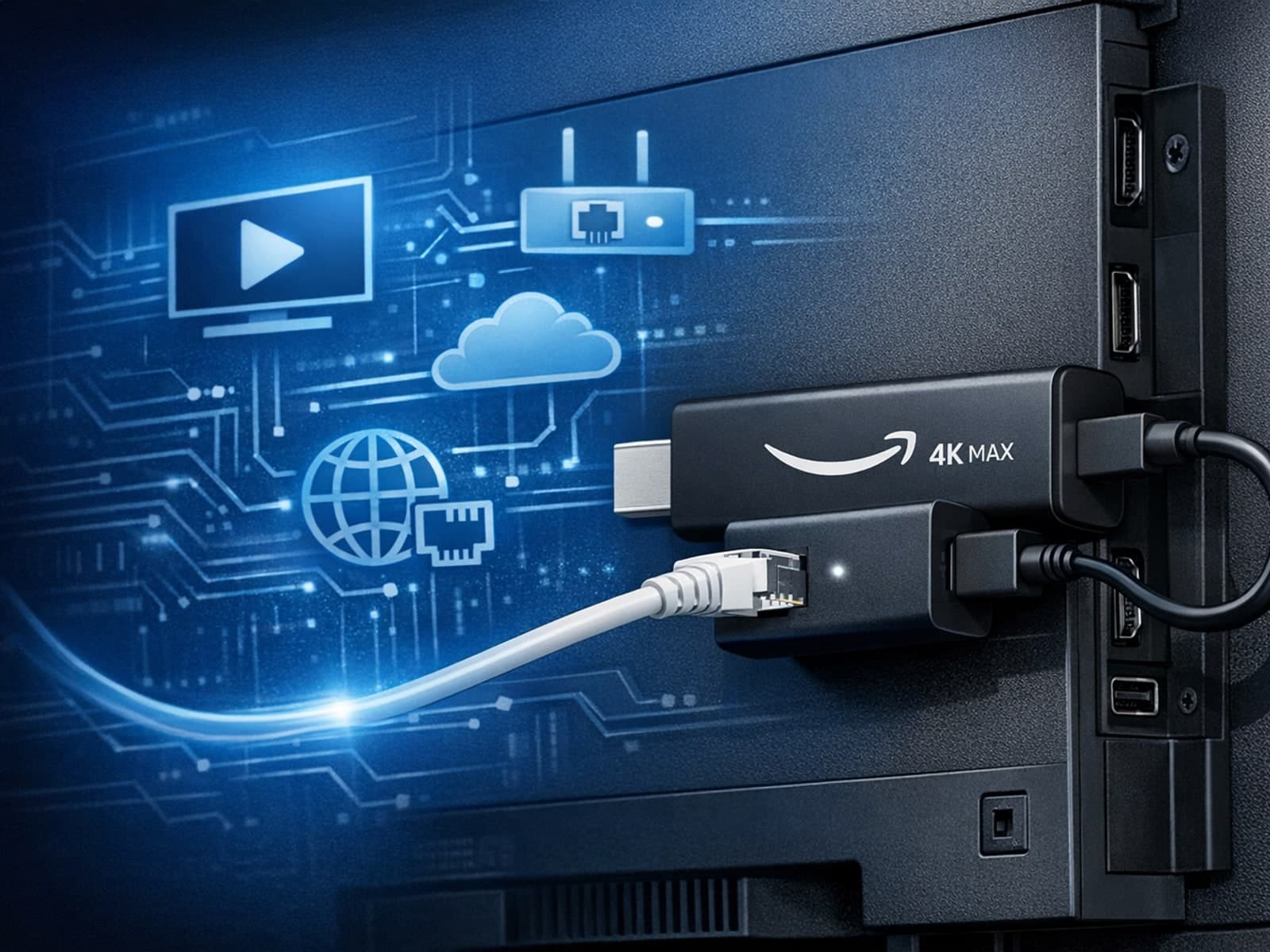
The Amazon Fire TV Stick 4K Max offers a powerful streaming experience with improved hardware and faster Wi-Fi connectivity. However, some users prefer the stability and reliability of a wired Ethernet connection over Wi-Fi.