Benefits of the Google TV Streamer and Where to Purchase

Quick answer
The Google TV Streamer is a compact device that transforms any compatible television into a smart entertainment hub by integrating streaming apps, live TV, and personalized content recommendations in one place. For users looking to simplify their streaming experience with an e...
Reviewed Against
• Android TV and Google TV troubleshooting paths and settings flows
Applies To
• Android TV and Google TV devices where app storage, system updates, and playback settings affect IPTV behavior
Does not apply when
• The device is not Android TV based and the settings menus do not match these steps.
Corroborating Resources
Android TV overviewA good reference for how Android TV is structured and where TV-specific app behavior comes from.
Google TV troubleshooting helpUseful for device-level playback, Wi-Fi, and settings checks when video behavior looks platform-wide.
On this page
Benefits of the Google TV Streamer and Where to Purchase
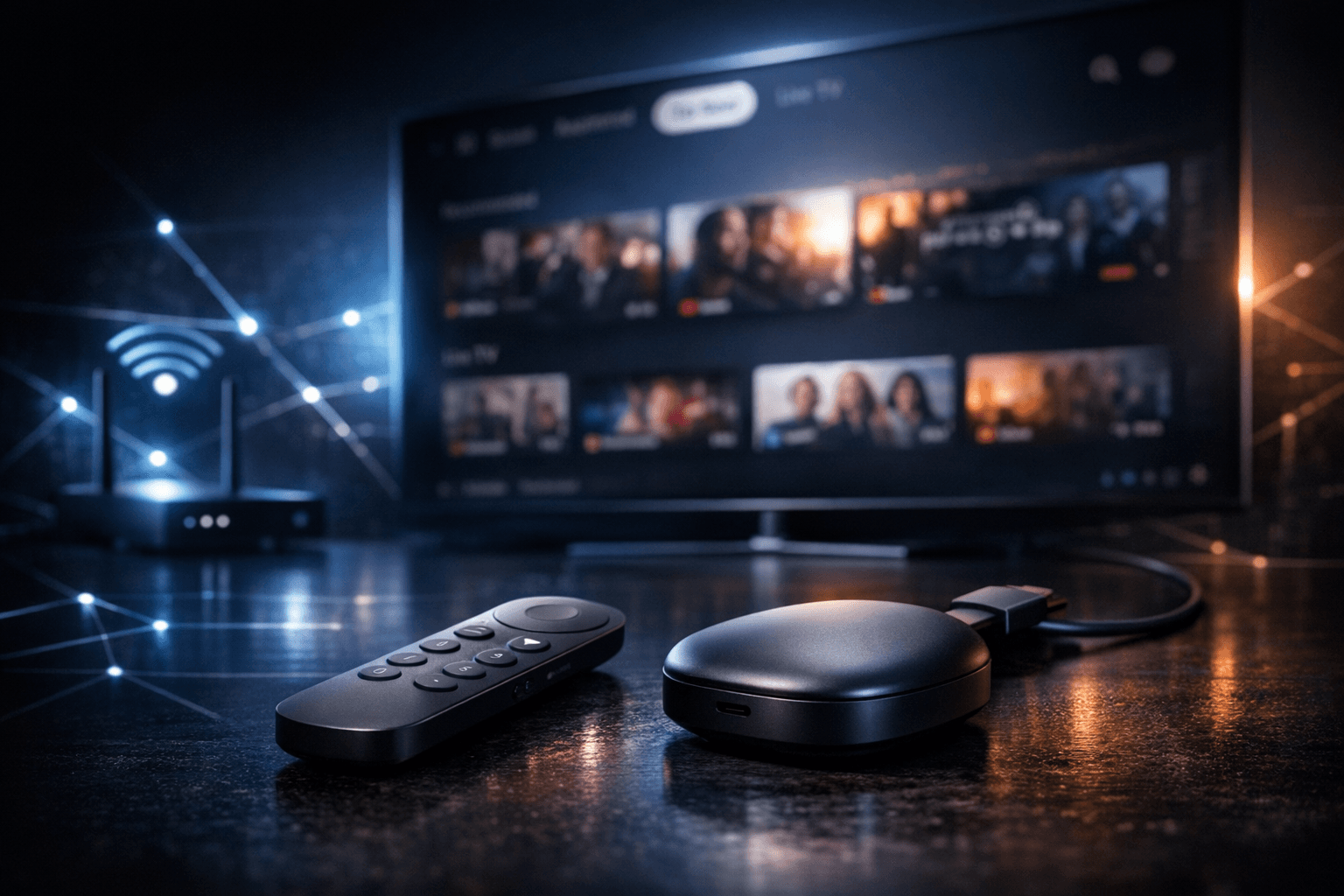
The Google TV Streamer is a compact device that transforms any compatible television into a smart entertainment hub by integrating streaming apps, live TV, and personalized content recommendations in one place. For users looking to simplify their streaming experience with an easy-to-use platform, the Google TV Streamer offers a practical solution. This article explains the main benefits it delivers and guides you on where and how to buy one.
What you'll learn
- Core advantages of the Google TV Streamer for viewers
- How Google TV unifies content from multiple sources
- Details on Google Assistant integration and voice control
- Tips to select the right Google TV Streamer model
- Recommended places and methods to purchase the device
- Common setup pitfalls and how to avoid them
How the Google TV Streamer Simplifies Streaming
Unified Interface for All Content
The standout feature of the Google TV Streamer is its ability to aggregate content across various streaming platforms and live TV sources into one easy-to-browse interface. Instead of switching among multiple apps or your cable guide, Google TV organizes movies, shows, and live broadcasts under sections like "For You," "Watchlist," and "Live." This means you spend less time searching for something to watch and more time enjoying content.
Personalized Recommendations
Powered by Google's algorithms, the streamer delivers tailored suggestions based on your viewing habits, subscriptions, and preferences. Over time, the device learns your tastes to forego generic recommendations and surface content that is more likely to interest you. This personalization prevents decision fatigue and enables discovery of new shows or movies without extensive searching.
Access to a Vast App Ecosystem
The device supports the Google Play Store, letting you install hundreds of apps for streaming services, games, and utilities. Popular apps include Netflix, Disney+, YouTube, Amazon Prime Video, Hulu, and many IPTV apps used in the IPTV community. This versatility sets Google TV apart from many smart TVs with fixed or limited app selections.
Voice Control and Smart Features
Google Assistant Integration
The Google TV Streamer includes a remote with a built-in microphone for easy voice commands via Google Assistant. You can search for content, control playback, adjust volume, ask questions, check the weather, or even manage compatible smart home devices using simple voice prompts. This hands-free control enhances accessibility and convenience.
Smart Home Compatibility
If you own Google Nest or other Assistant-enabled devices, the streamer serves as part of your connected ecosystem. You can ask your Google TV remote to dim lights, adjust thermostat settings, or check security cameras while watching TV without switching devices.
Choosing the Right Google TV Streamer Model
Currently, Google offers the Chromecast with Google TV in several versions, differing mainly in resolution support and remote features. Consider these factors when selecting a model:
| Feature | Chromecast with Google TV (HD) | Chromecast with Google TV (4K) |
|---|---|---|
| Max Resolution | 1080p (Full HD) | 4K UHD |
| HDR Support | No | Yes (HDR10, Dolby Vision) |
| Remote Type | Basic voice remote | Enhanced voice remote with power and volume buttons |
| Price Range | Lower-cost option | Mid to high range |
If your TV supports 4K and you plan to watch UHD content, opting for the 4K version is recommended to fully leverage your setup.
Where to Purchase the Google TV Streamer
Trusted Online Retailers
- Google Store: Buying directly from the Google Store ensures authenticity and access to the latest model updates and warranty.
- Amazon: Offers convenient shipping options and often competitive pricing.
- Major Electronics Retailers: Websites of Best Buy, Walmart, and others also stock the device.
Physical Electronics Stores
Visiting brick-and-mortar stores lets you discuss options with staff and get hands-on experience. It can be useful if you want immediate pickup or personalized advice.
Avoiding Unofficial Sellers
Be cautious with third-party marketplaces or unauthorized sellers to avoid counterfeit or tampered devices.
Common Setup Mistakes and Troubleshooting Tips
Mistake: Incorrect HDMI Input
Ensure the streamer is connected to an active HDMI port on your TV. Sometimes TVs have multiple ports with varying capabilities or require manual input selection.
Mistake: No Internet Connection
Stable Wi-Fi or Ethernet connection is essential. Use the setup wizard to connect, and troubleshoot network issues if the device cannot reach online services.
Mistake: Sign-In Problems
Your Google account is necessary to access and personalize Google TV features. Double-check credentials and reset password if needed.
Troubleshooting Steps
- Restart the Google TV Streamer and your Wi-Fi router.
- Update the device software via the settings menu if possible.
- Reset the device to factory settings if persistent issues remain.
How to Purchase and Set Up Your Google TV Streamer
- Verify that your TV has an available HDMI port suitable for connecting the streamer.
- Choose the appropriate Chromecast with Google TV model based on your resolution needs.
- Purchase from a reputable online retailer or physical store as preferred.
- Unbox and connect the streamer to your TV's HDMI port and power source.
- Follow the on-screen prompts to connect to Wi-Fi, sign in with your Google account, and personalize settings.
FAQ
What is the Google TV Streamer?
It is a streaming device that plugs into your TV via HDMI, providing access to multiple streaming apps and live TV with a unified smart interface.
Can the Google TV Streamer replace a smart TV?
Yes, it can upgrade any HDTV with an HDMI input into a smart TV with Google TV's features.
Is voice control built into the remote?
Yes, the remote includes Google Assistant voice capabilities.
Can I use my existing streaming subscriptions?
Absolutely, you can sign in to your existing accounts like Netflix or Hulu within the Google TV apps.
Does it support IPTV apps?
Yes, you can install IPTV apps available on the Google Play Store.
Conclusion
The Google TV Streamer offers a convenient way to centralize your streaming experience, simplify content discovery, and add intelligent voice controls to your television setup. Its seamless integration with Google services and app ecosystem make it a practical addition for users seeking smarter TV viewing. By purchasing from trusted sources and selecting the model that fits your display capabilities, you can easily enhance your home entertainment with the Google TV Streamer.
For deeper insights on related IPTV topics, consider exploring our article on Fire TV Cube vs Fire TV Stick 4K Max for IPTV and troubleshooting guides like Why IPTV Freezes During Channel Switching and How to Fix It.
Note: Always ensure the legality and appropriate subscription rights for IPTV and streaming content in your region before engaging.
Keep exploring
More explainers that connect naturally to this setup, workflow, or troubleshooting path.
TiviMate is a popular IPTV player app for Android TV and similar devices, known for its advanced channel management options. Organizing favorites and groups in TiviMate lets you customize your IPTV watching experience by categorizing.

When you switch channels on your IPTV service and the screen freezes or lags, it’s frustrating and disrupts your viewing experience. IPTV freezing during channel switching is most often caused by network delays, buffering, or the IPTV.

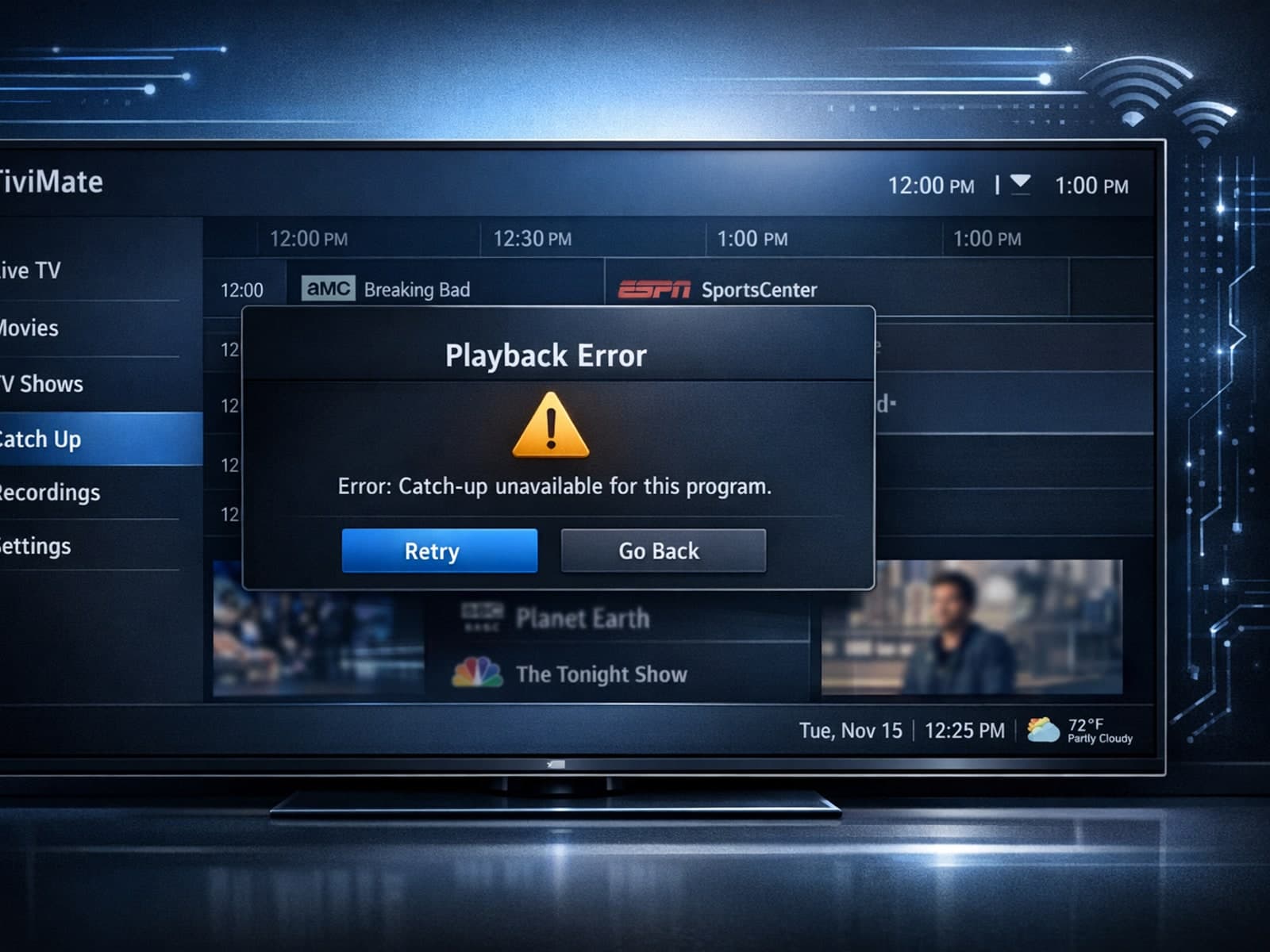
If your catch-up feature in TiviMate isn’t working, the fundamental reasons often lie in your IPTV playlist source or server configuration rather than the app itself.
